![airtouch-logo.png]](https://help.airtouch.net.au/hs-fs/hubfs/airtouch-logo.png?width=100&height=52&name=airtouch-logo.png)
Follow these steps to download, install, and connect the AirTouch Home mobile app to your console.
Download the App
Download the AirTouch Home mobile app from the App Store (iOS) or Google Play Store (Android).
Sign In or Create an Account
- Open the app once installation is complete.
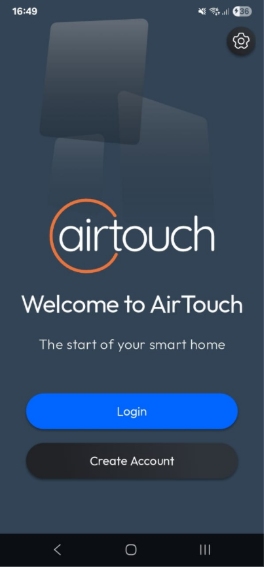
- If you have an AirTouch account:
- Tap Login button.
- Enter your Email and Password.
- Tap Login button to continue.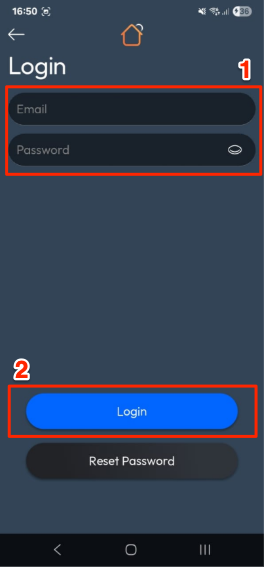
- If you don’t have an AirTouch account, you can refer here to create an account.
- The app will display a Welcome screen.
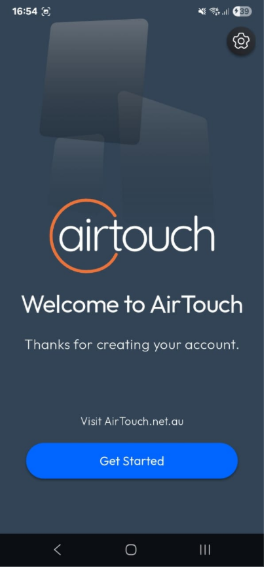
- Tap Get Started button.
- The app will automatically scan for unassigned AirTouch Home devices on the same network.
Create a Location
- Select your AirTouch Console from the list.
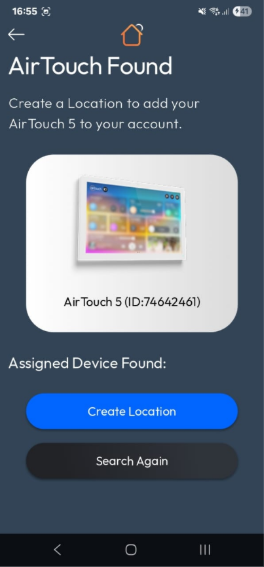
- Tap Create Location button.
- On the Create Location screen:
- Enter a Location Name.
- Check your address or adjust the map pointer to your desired location (optional). Notes: Required ‘Location’ permissions & services for detecting current location.
- Tap Create Location button to confirm.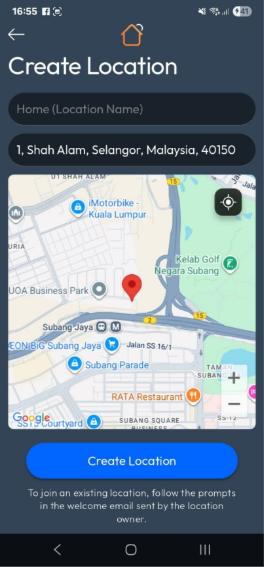
Connect to the Console
- Your console will display a 6-digit pairing code.
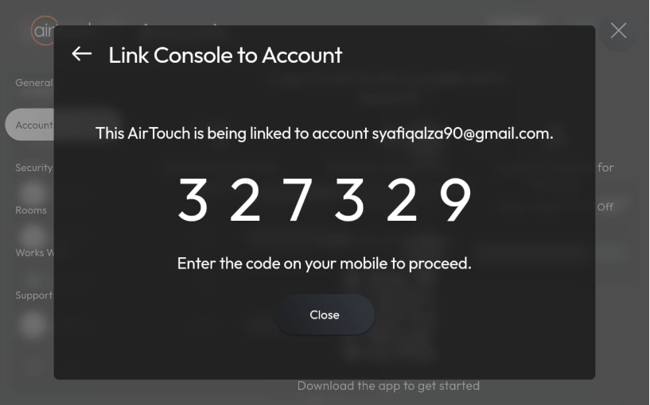
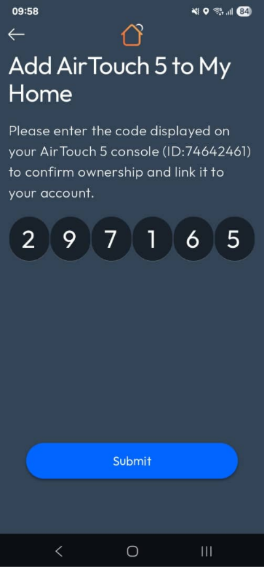
- On the mobile app, enter the 6-digit code and tap Submit button.
- The app will display a Success screen.
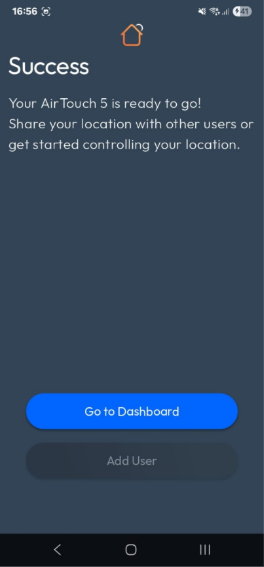
- Tap Go to Dashboard.
- The app will open the Dashboard, where you can start controlling your AirTouch Home system.