![airtouch-logo.png]](https://help.airtouch.net.au/hs-fs/hubfs/airtouch-logo.png?width=100&height=52&name=airtouch-logo.png)
Geofencing allows your AirTouch Home system to trigger routines automatically based on your location. For example, you can set your AC to turn on when you arrive home or power down when you leave.
Steps to Set Up Geofencing
Create a Routine in Console
- Go to Routine > tap New Routine.
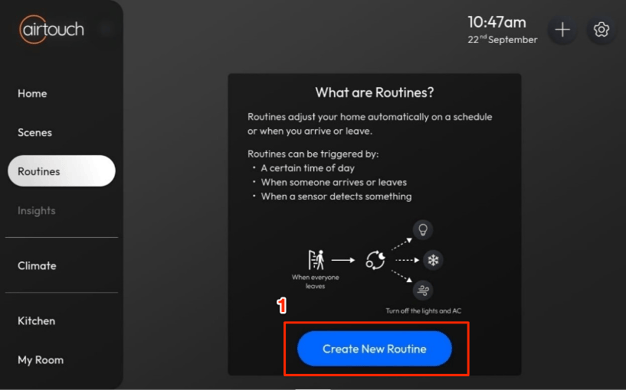
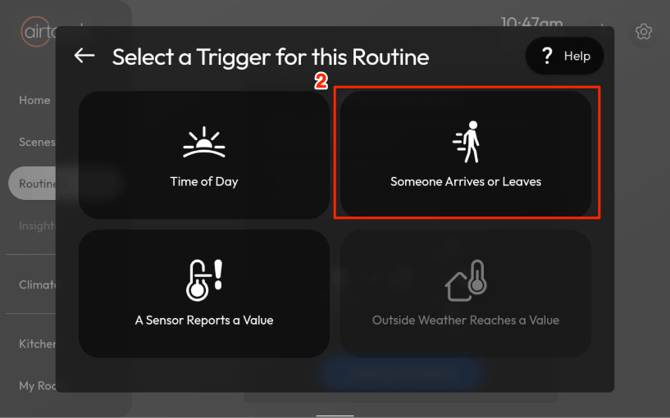
- Select Someone Arrives or Leaves.
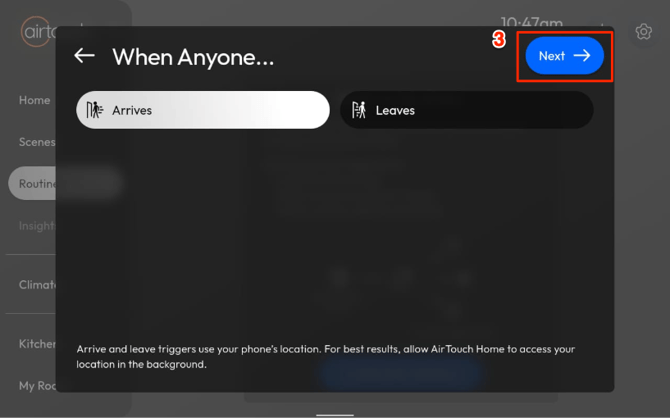
- Choose whether to trigger When Anyone Arrives or When Anyone Leaves, then tap Next.
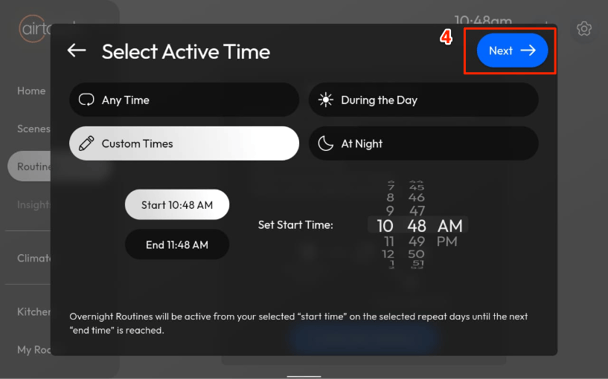
- Select the Active Time, then tap Next.
- Anytime > always triggers the routine.
- During the Day > triggers from sunrise to sunset.
- At Night > triggers from sunset to sunrise.
- Custom Times > manually select start and end times.
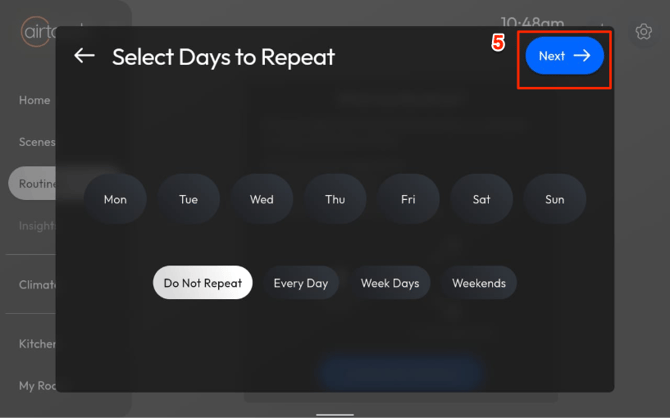
- Select the Days to Repeat, then tap Next.
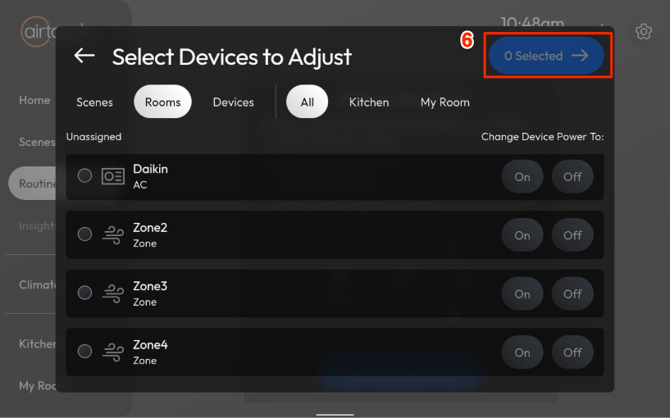
- Choose the Devices to Adjust. then tap Next.
- Name the Routine.
- Configure device actions such as on/off, temperature changes, etc.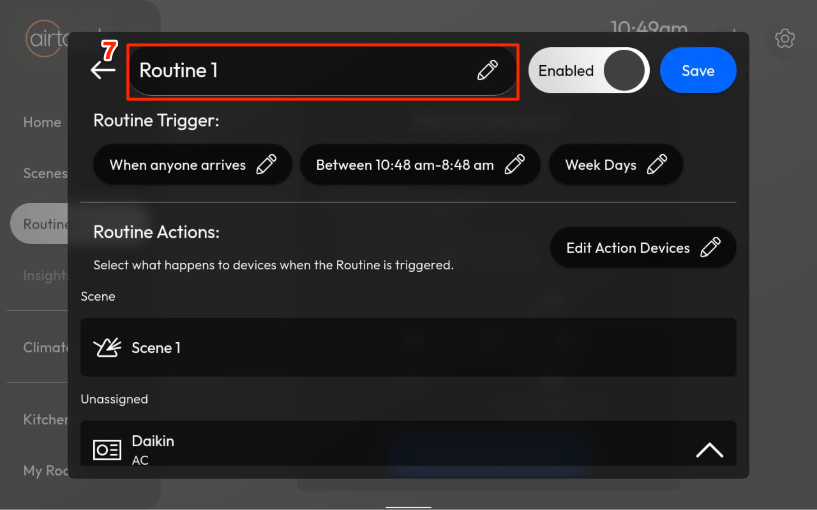
- (Optional) Enable Notifications and customise the notification message.
- Tap Save.
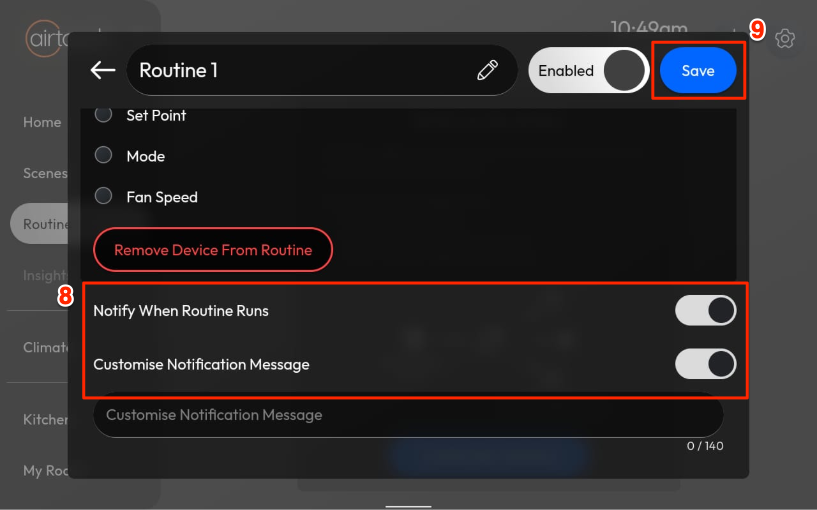
Your Geofencing routine is now ready.
Enable Geofencing in mobile app
- Open the AirTouch Home mobile app.
- Go to Settings → General.
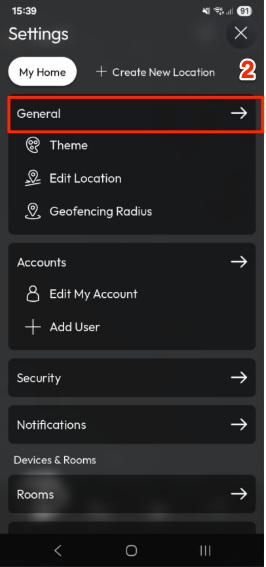
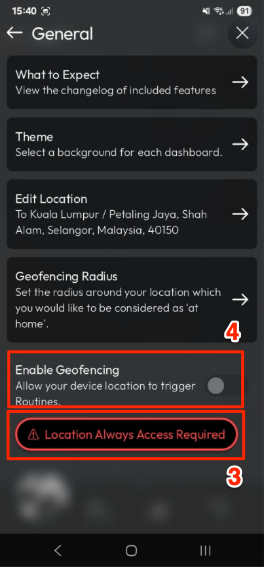
- Your mobile device’s Location Permission must be set to Always Allow for geofencing to work properly, even when the app is running in the background. Tap “Location Always Access Required” to change the Location Permission.
- Toggle Enable Geofencing to ON.
How to Set the Geofencing Radius
The geofencing radius can only be configured in the app.
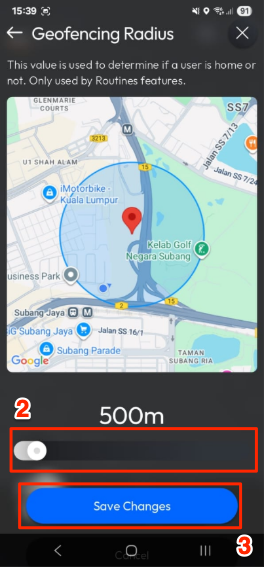
- Go to Settings > Geofencing Radius.
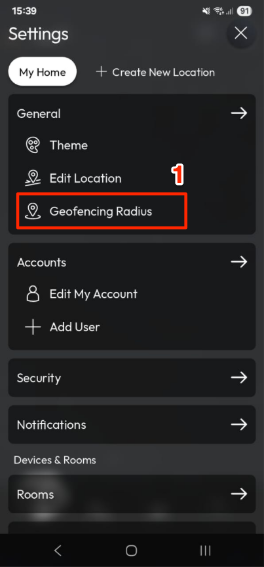
- Adjust the radius slider (default is 500m).
- You can select a range from 200m to 5000m. - Tap Save Changes to apply.