![airtouch-logo.png]](https://help.airtouch.net.au/hs-fs/hubfs/airtouch-logo.png?width=100&height=52&name=airtouch-logo.png)
AirTouch Home lets you customize tiles in the dashboard to quickly access devices or scenes. Follow the steps below to add and configure them.
Note: The console and mobile app follow similar steps to add tiles, but each dashboard view is independent. Changes you make on the console will not affect the mobile app dashboard, and vice versa.
Tip: Arrange tiles based on how often you use them. Keep your most important devices and scenes near the top for quick access.
Adding a Tile
- From the Dashboard, tap the + button.
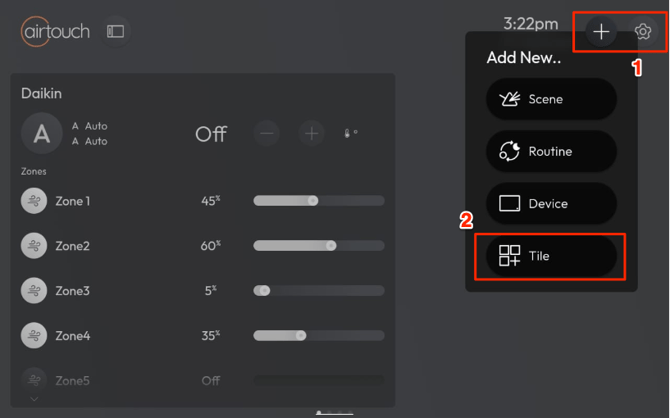
- Tap Tile button to add a new tile.
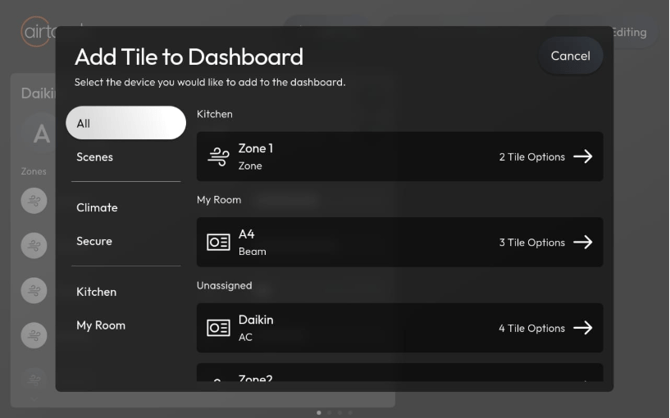
- Choose the tile you want to add:
- Scenes – List of Scenes selection.
- Rooms – List of Device selection grouped by room.
- Devices – List of Device selection grouped by type (e.g., Climate, Garage Doors, Secure, etc.).
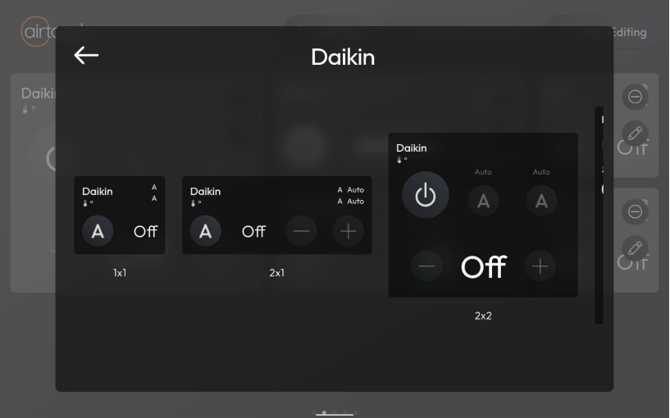
- Select the tile size:
Mobile App
- AC: 1×1, 2×1, or 2×2
- Zone / Beam: 1×1 or 2×1
- Sensor / Garage Door: 1×1
Console App:
- AC: 1×1, 2×1, 2×2, or 3×3
- Zone: 1×1 or 2×1
- Beam: 1×1, 2×1 or 2×2
- Sensor / Garage Door: 1×1
- For AC tiles, if you select 3×3 on the console or 2×2 on the mobile app, you can:
- Customize the position of zones displayed within the tile.
- Hide zones you don’t want to display (at least one zone must be shown).
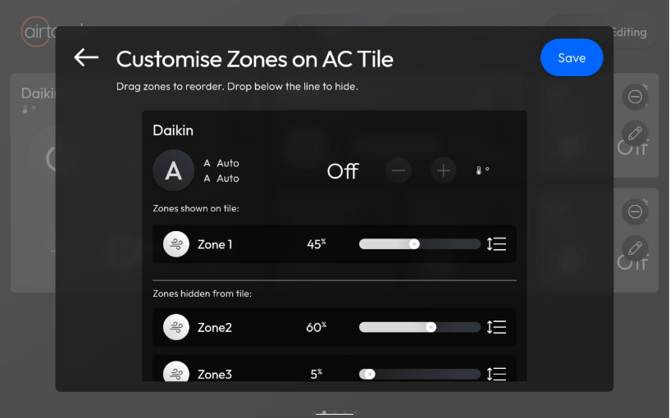
- Tap Save and Finish Editing.
Edit/Remove a Tile
- From the Dashboard, long-press the tile you want to edit.
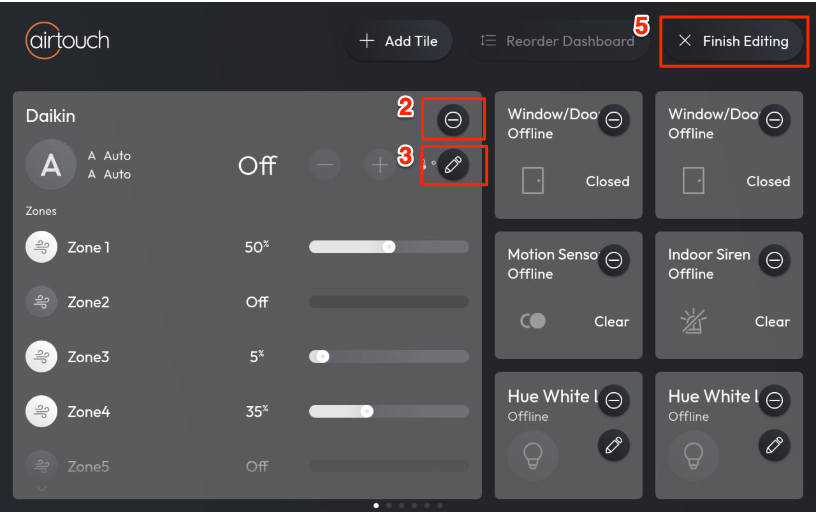
- To remove the tile → tap the (–) Remove icon.
- To edit the tile → tap the Edit icon and adjust the size.
- To change the position of the tile → drag and drop the tile to a new position.
- Once done, tap Finish Editing to save your changes.