![airtouch-logo.png]](https://help.airtouch.net.au/hs-fs/hubfs/airtouch-logo.png?width=100&height=52&name=airtouch-logo.png)
To onboard an AirTouch Secure device to AirTouch Home, make sure the Smart Station is online and connected to the same network as your AirTouch Home console.
Steps to onboarding AirTouch Secure
-
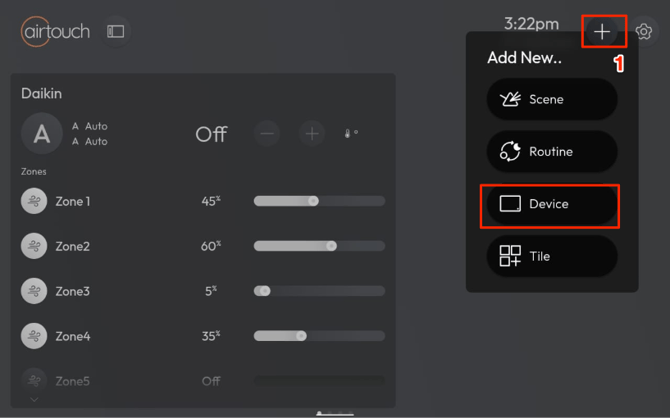
On the AirTouch Home console or mobile app, tap the + (Add icon) → select Device.
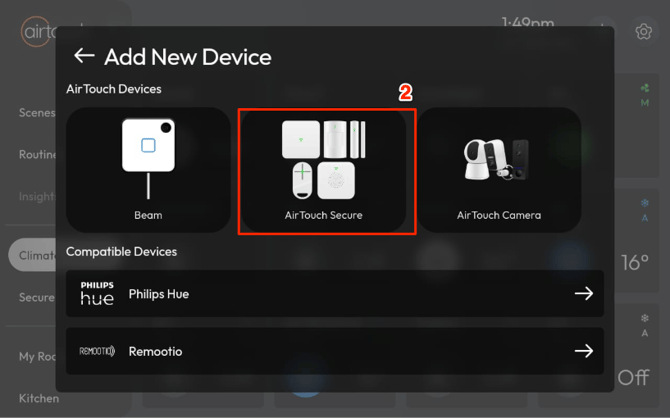
- Choose AirTouch Secure from the list.
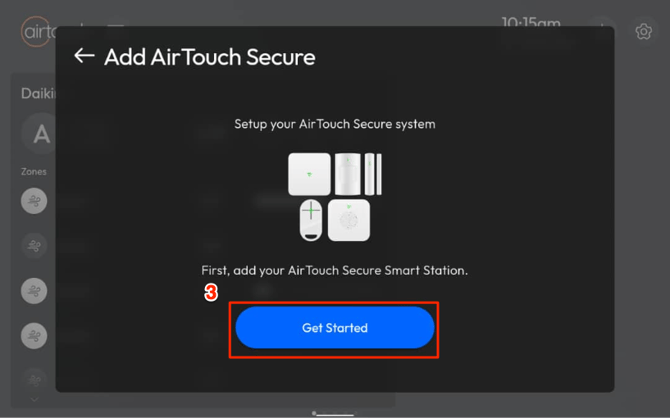
- Tap Get Started.
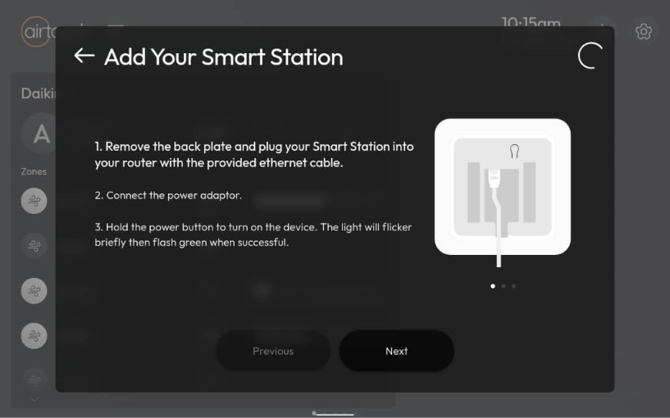
- Follow the on-screen instructions to set up the Smart Station.
- Once the Smart Station is added, tap Add Devices.
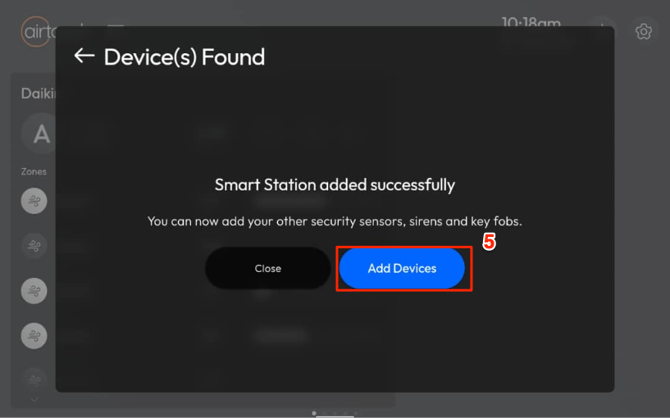
- Select the Secure device you want to add and follow the instructions to pair it.
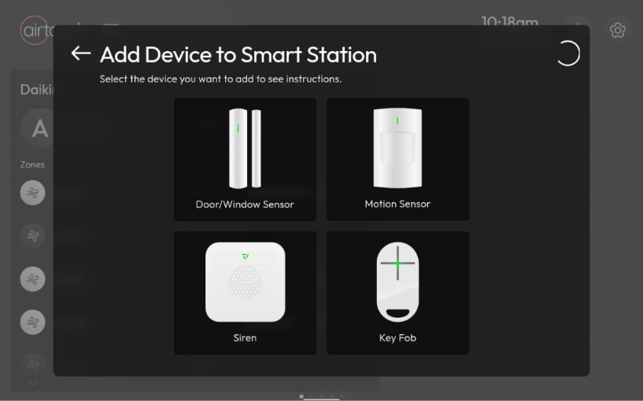
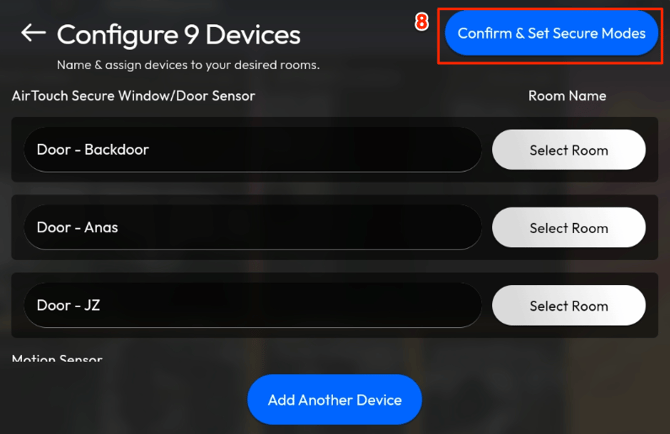
- Once AirTouch Home detects the Secure device(s), configure each device:
- Rename it (optional).
- Assign it to a room (optional).
- Tap Confirm & Set Secure Modes.
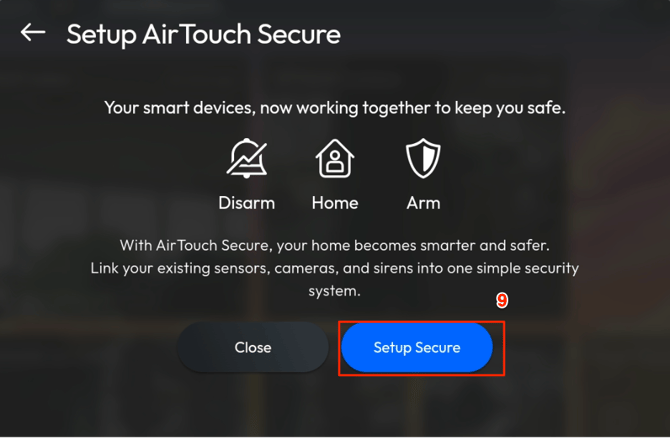
- AirTouch Secure onboarded. Now, you can setup AirTouch Secure by clicking ‘Setup Secure’. Else, you can click ‘Close’ to continue setup later.
- Before setting up AirTouch Secure, you need to confirm the disclaimer. If ‘Cancel’, then you are not able to proceed or use AirTouch Secure.
Note: This disclaimer only displays on every first setup.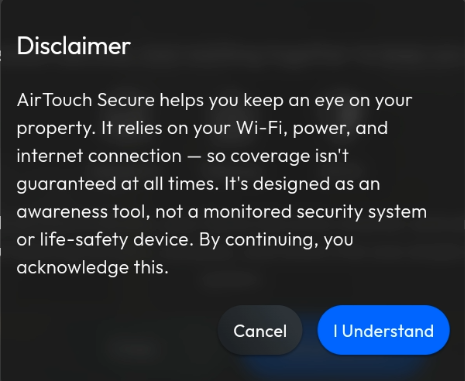
- Once you clicked ‘I Understand’, you will see next page for Setup Arm Mode.
You can select the devices will send alerts to your phone and sound the sirens when in Arm mode.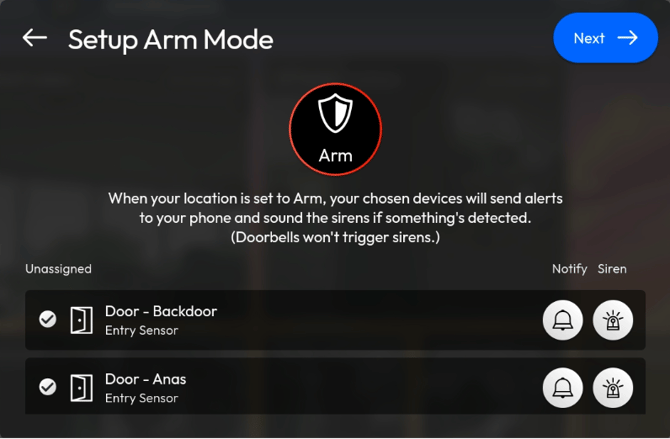
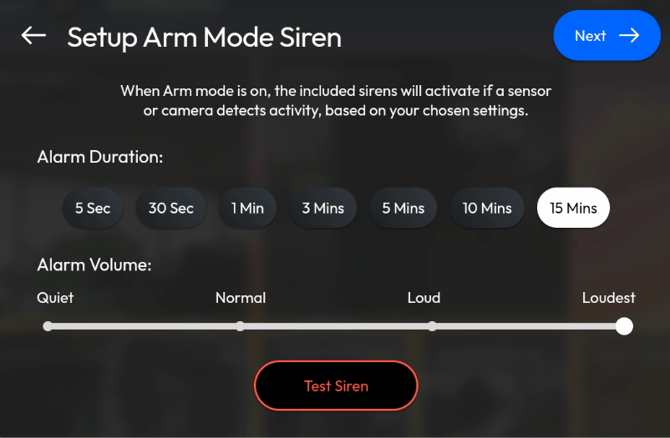
- Once done setup Arm mode, you can proceed to next steps for Setup Arm mode Siren. This page to configure the siren volume and test out the siren alert.
- After that, you can set a Pin Code on your console. If you do not want to set pin code, please click ‘Skip Pin Code’
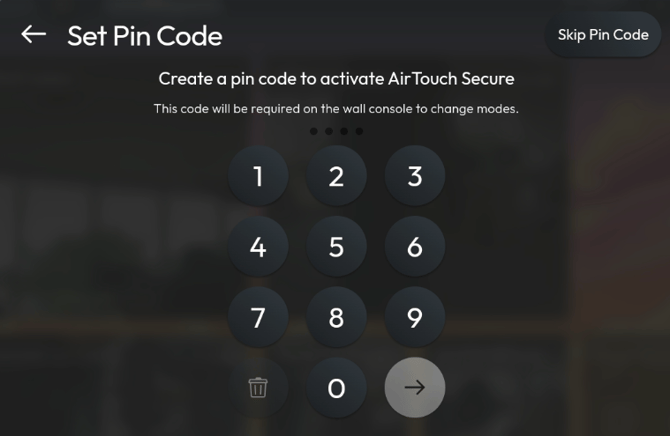
- Pin confirmation is required once you setup the Pin Code to ensure your Pin code set correctly.
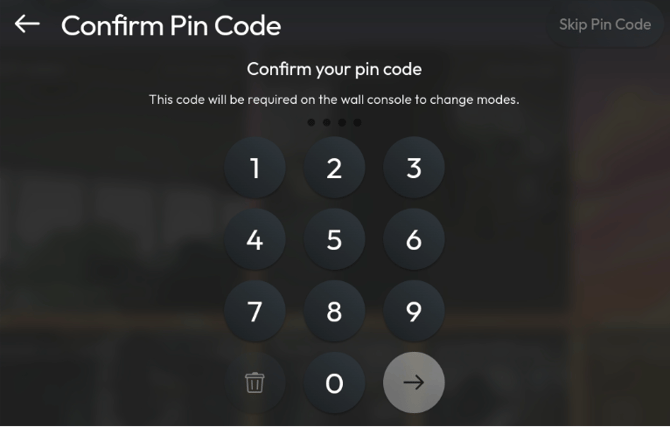
- Once confirmation is done, you are done setting up Arm mode. Next is Setup Home Mode by selecting the devices that you want to send alert in Home mode.
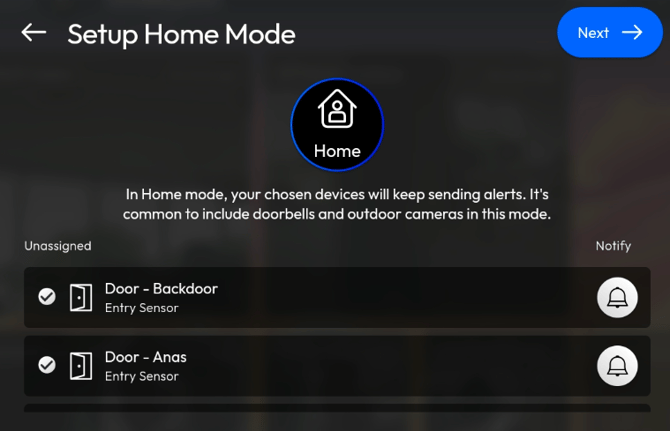
- Once done setup Home Mode, you must click ‘Finish Setup’ to save the AirTouch Secure settings.
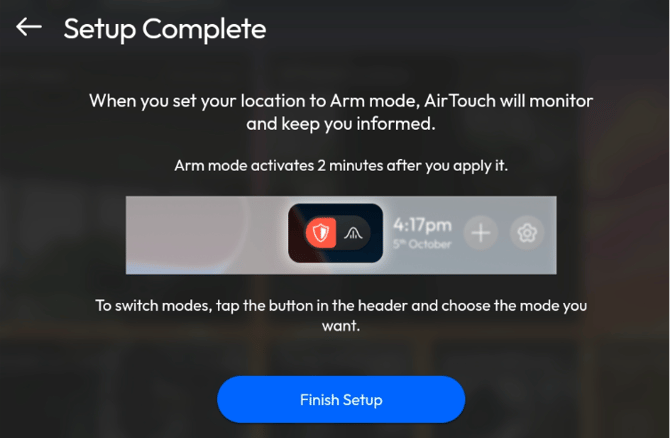
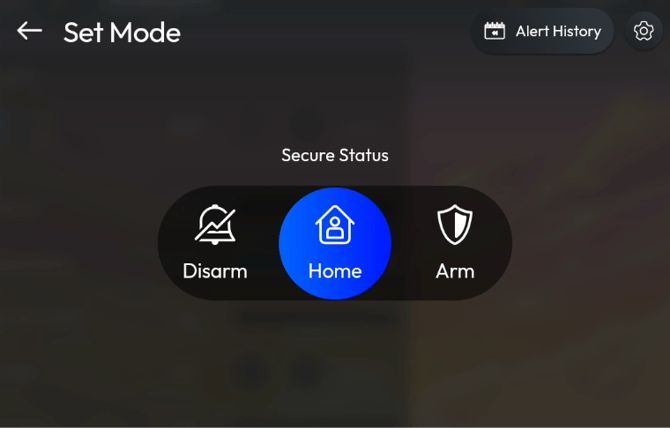
Your AirTouch Secure devices are now active and ready to use within AirTouch Home. On the Dashboard header, AirTouch Secure will be displayed
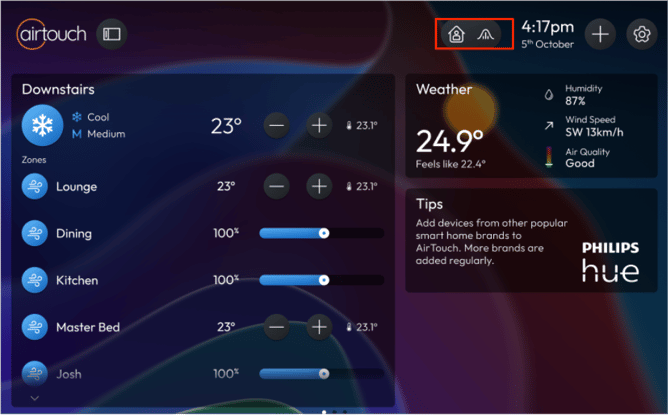
By clicking the header button, it opens the ‘Set Mode’ page to allow you toggle Secure Status (Mode)
How to update the AirTouch Secure Settings?
-
Go to Settings
 and navigate to ‘Secure’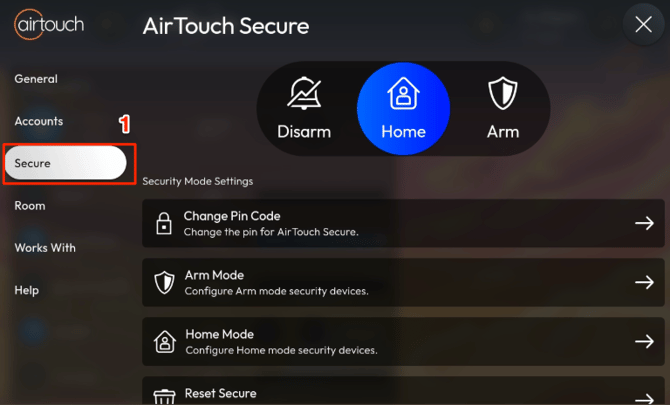
Note: If you have not setup secure, you can navigate to this page to start setting up AirTouch Secure. - In Secure Settings page, you can
- Change or Delete Pin code. Even can setup Pin Code if you not done during onboarding AirTouch Secure.
- Update Arm Mode
- Update Home Mode
- Reset Secure back to default state where all devices will be enabled by default.
What is Disarm, Home and Arm Mode for AirTouch Secure?
- Disarm Mode: Indicates that the security system is turned off. All sensors are inactive and no alarms will be triggered, regardless of activity detected inside or outside the house.
- Home Mode: Indicates that you are at home. In this mode, security devices are active, but the system avoids triggering alarms for normal activity inside the house.
- Arm Mode: Indicates that you are not at home. If a door sensor or motion sensor is triggered while in Away Mode, the system will sound the alarm to alert you of potential intrusion.