![airtouch-logo.png]](https://help.airtouch.net.au/hs-fs/hubfs/airtouch-logo.png?width=100&height=52&name=airtouch-logo.png)
With AirTouch Home 1.2.0 or later you can group your smart lights. One tile can control a whole room, all the lights in a pendant, or all the downlights in your kitchen, instead of each light on its own.
Grouping works with smart lights you've already added to AirTouch Home, such as Philips Hue and LIFX. You can mix Hue and LIFX lights in the same group. A group needs at least two lights.
You can create, change and delete groups on your console or in the mobile app.
How do I create a light group?
- On your dashboard, tap one of the lights you want to group.
- Tap More.
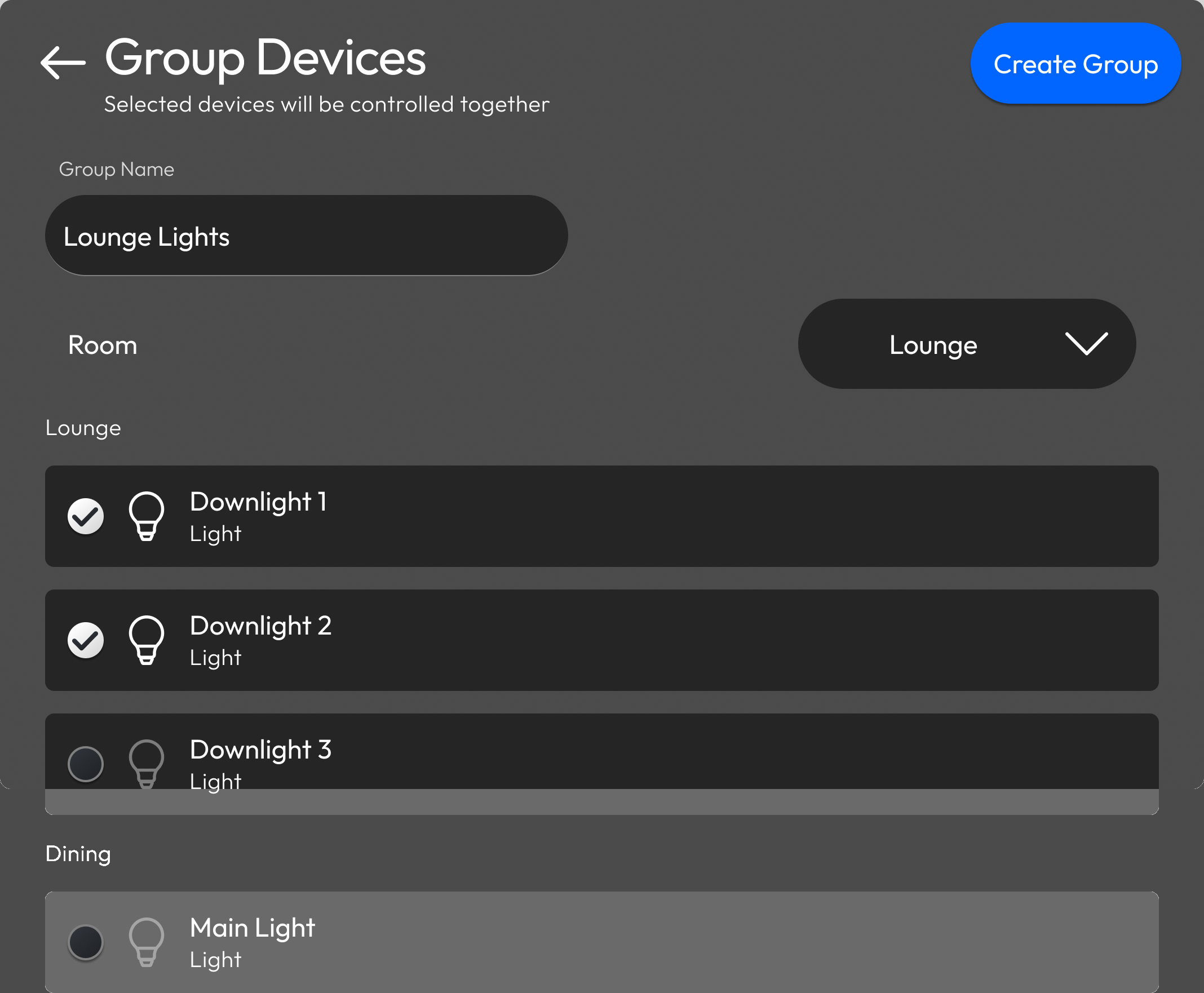
- Tap Group Devices.
- Give the group a name, such as Lounge Lights.
- Pick a room for the group. It starts in the room of the light you began with, and you can change it.
- Select the lights to include. You need at least two.
- Tap Create Group.
How do I add a light group to my dashboard?
After you tap Create Group, AirTouch Home asks if you want to add the group to your dashboard.
- Tap Add Tile. If you'd rather do it later, tap Not Now.
- Choose a tile size: 1x1 or 2x1. The 2x1 tile also has a brightness slider.
- On the dashboard, tap + then Edit Dashboard.
- Tap Add Tile.
- Tap Groups and choose your group.
- Choose a tile size: 1x1 or 2x1.
- Tap Finish Editing to save your dashboard.
The group tile takes the place of the lights' own tiles on your dashboard. If you tap Not Now, the lights' own tiles stay where they are.
Can I add the group tile later?
In the mobile app, your group also appears in the Rooms tab, in the room you chose. Tap Lights to filter the list.
How do I control a light group?
- Tap the group tile to turn every light in it on or off together. On a 2x1 tile, you can also change the brightness from the tile.
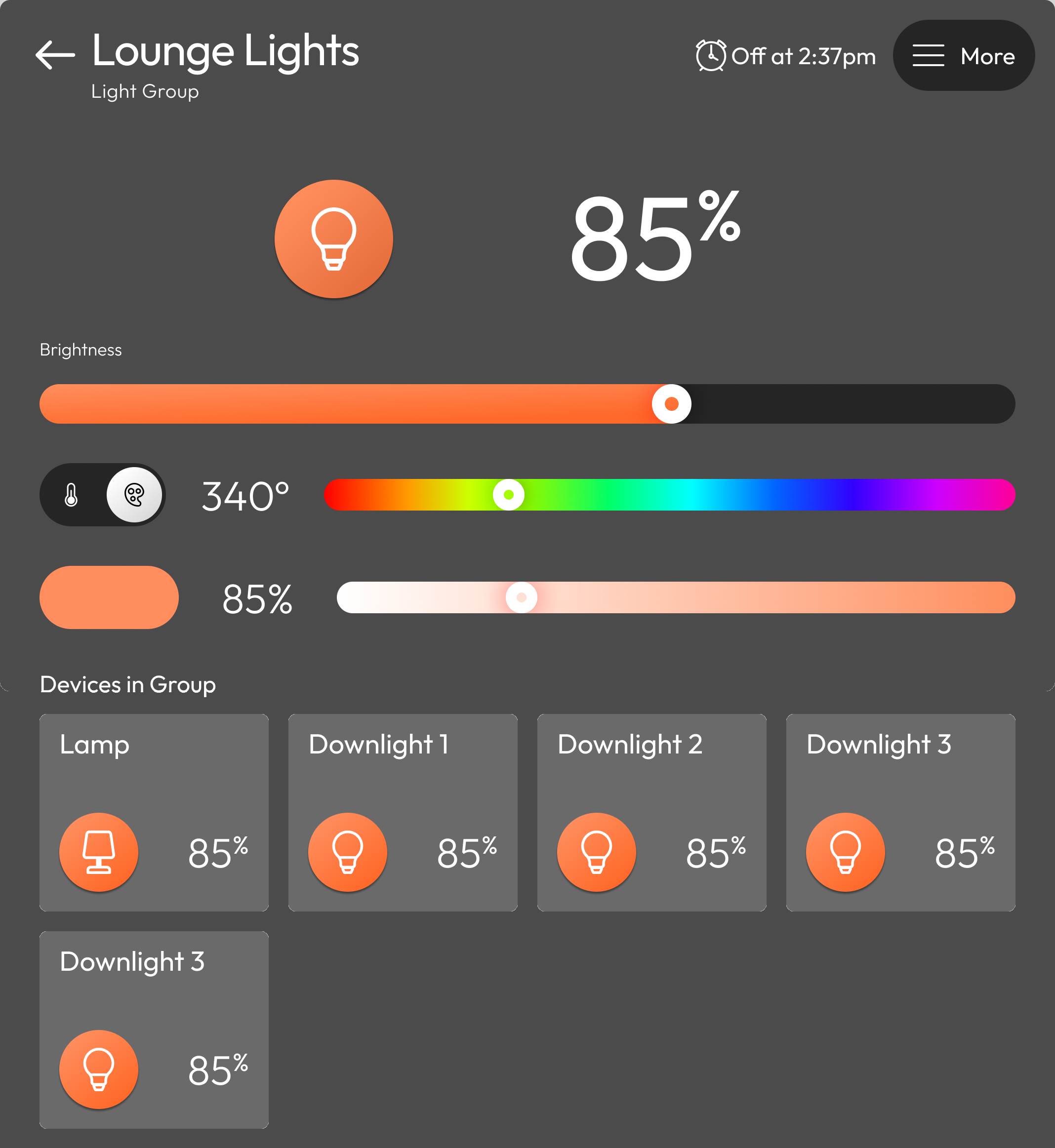
- Open the tile for brightness, colour and colour temperature. Changing a setting changes it for every light in the group.
-
If the lights in a group are set differently, the tile shows Mixed. To bring them back in line, change the setting from the group. Only the setting you change lines up. For example, changing the brightness sets every light to the same brightness, but each light keeps its own colour.
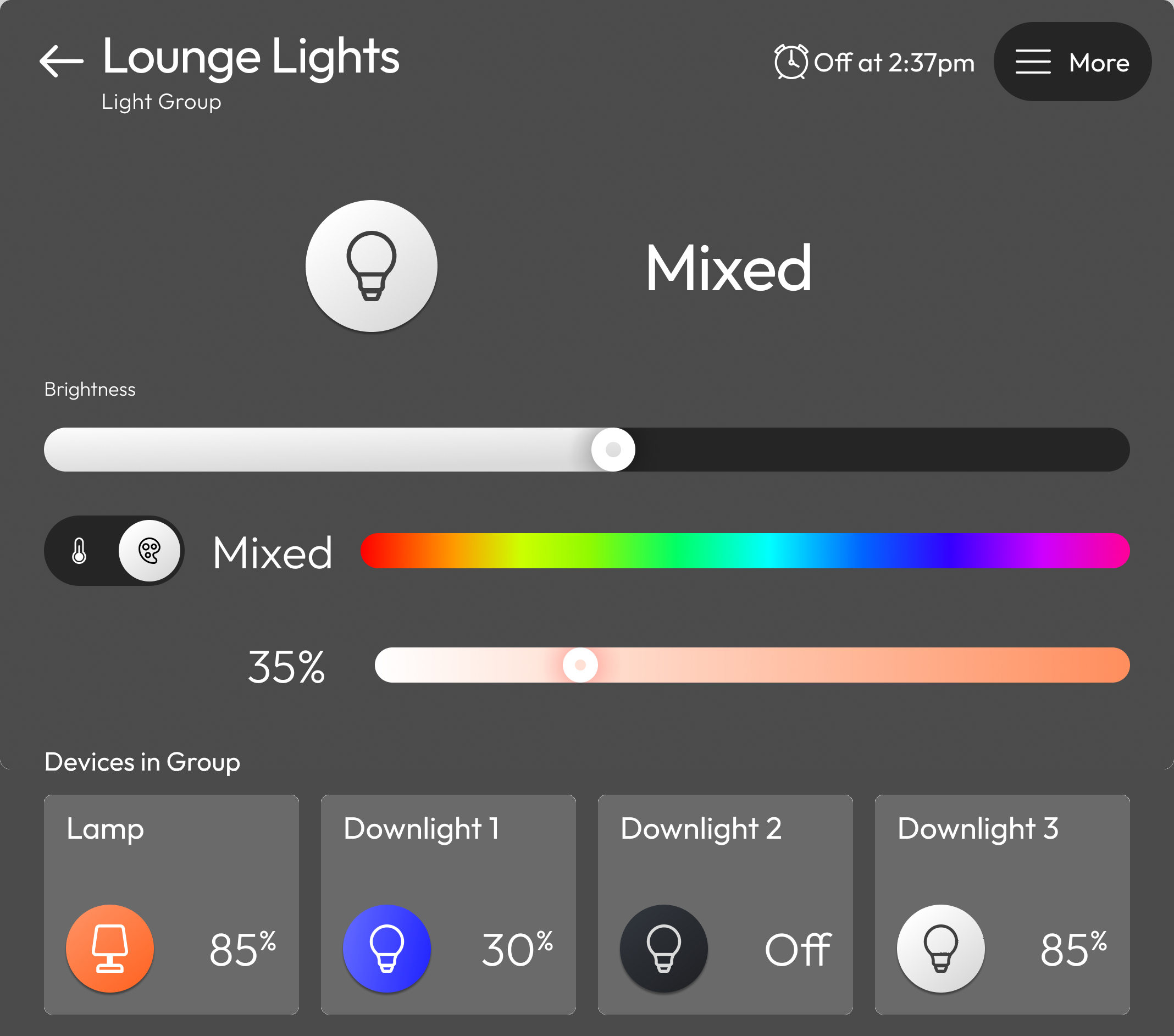
- Turning a group off and on again keeps each light's own colour and brightness.
- Under Devices in Group, you'll see each light in the group. Tap one to control it on its own.
- A group made only of white-ambience lights shows colour temperature and no colour wheel.
How do I edit or delete a light group?
Open the group tile and tap More. From there you can:
- Rename the group.
- Move the group to another room. Tap Room, choose a room and tap Confirm. You can also tap New Room to create one.
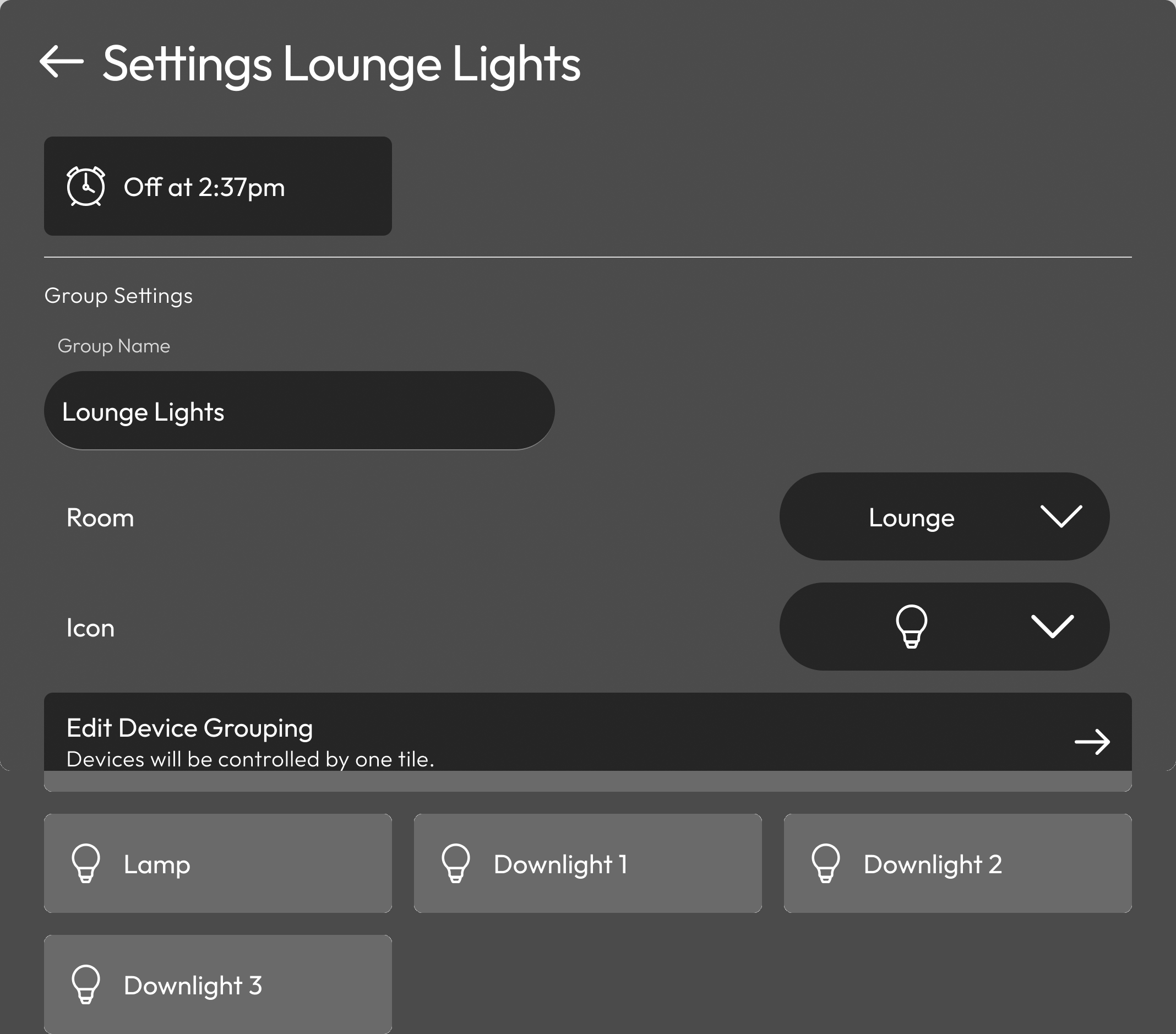
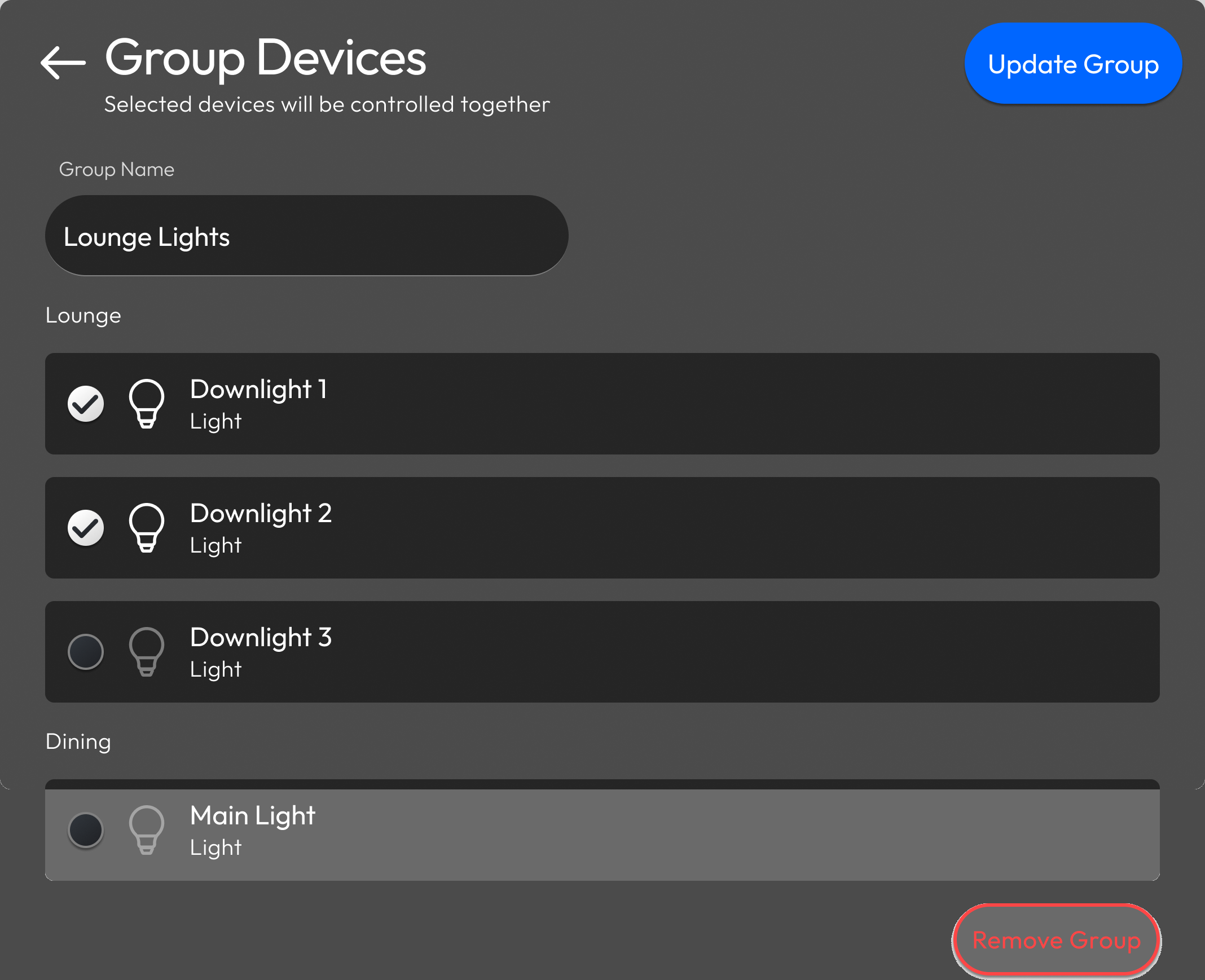
- Add or remove lights. Tap Edit Device Grouping, tick or untick lights, then tap Update Group.
- Delete the group. Tap Edit Device Grouping, then Remove Group.
When you delete a group, your lights stay in AirTouch Home as single lights, but their tiles don't come back to your dashboard by themselves. To add them back, tap + then Edit Dashboard, then Add Tile.
What happens when my dashboard is full?
- If your console dashboard fills up, AirTouch Home creates another dashboard. Swipe left or right to move between them.
- In the mobile app, you can scroll down for more tiles. You can also add extra dashboards and swipe between them.
If you need further assistance please reach out to Team AirMate via the contact form.