![airtouch-logo.png]](https://help.airtouch.net.au/hs-fs/hubfs/airtouch-logo.png?width=100&height=52&name=airtouch-logo.png)
To add an AirTouch Camera, you must ensure Bluetooth and location services are enable in your devices (Mobile or Console)
-
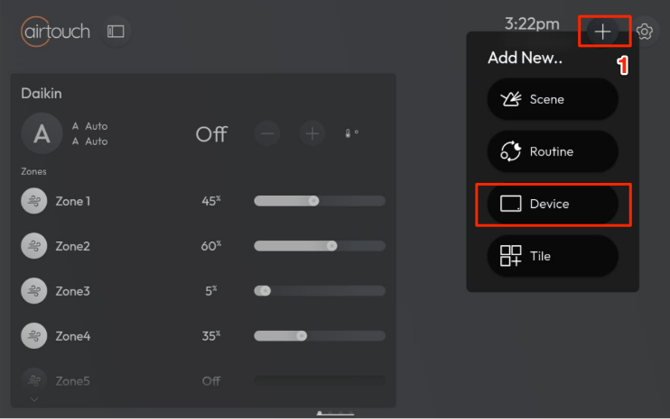
On the AirTouch Home console or mobile app, tap the + (Add icon) → select Device
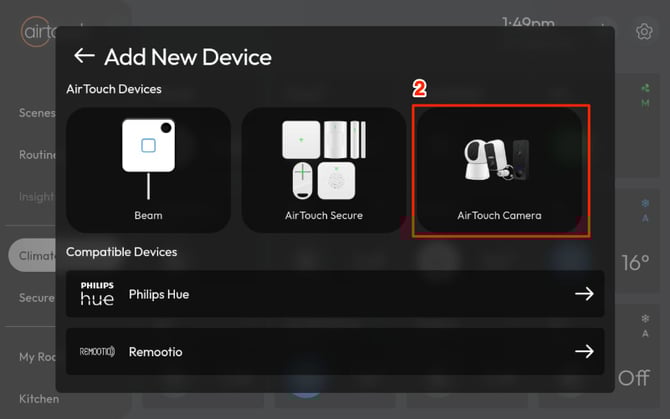
- Choose AirTouch Camera from the list
- Tap Get Started
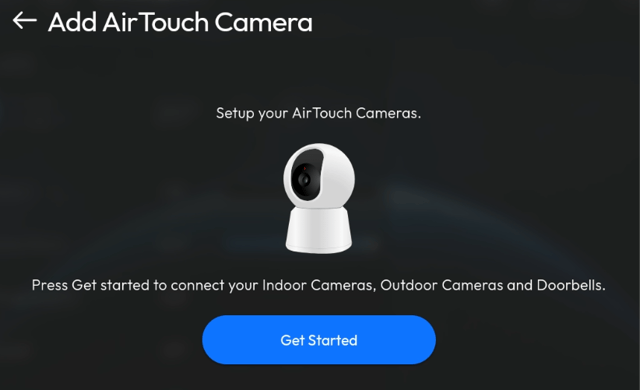
- Please power on the camera and turn ON the Bluetooth & location services for pairing the camera.
- System will automatically discovery the camera.
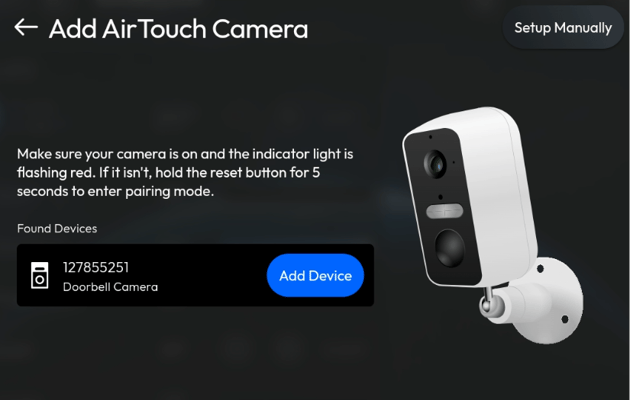
- Click ‘Add Device’
- Select the network name within your home network.
- If there is no network name listed, you can retry to scan again or check your home network has 2.4GHz bandwidth being setup.
- You can insert the network name & credential by typing
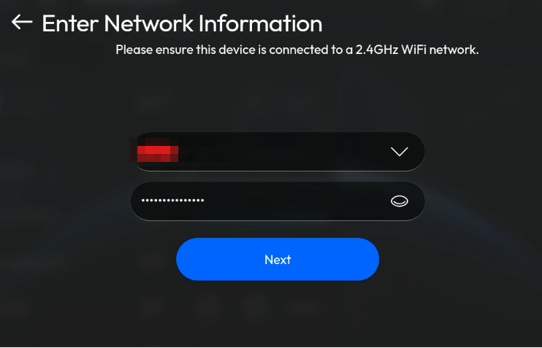
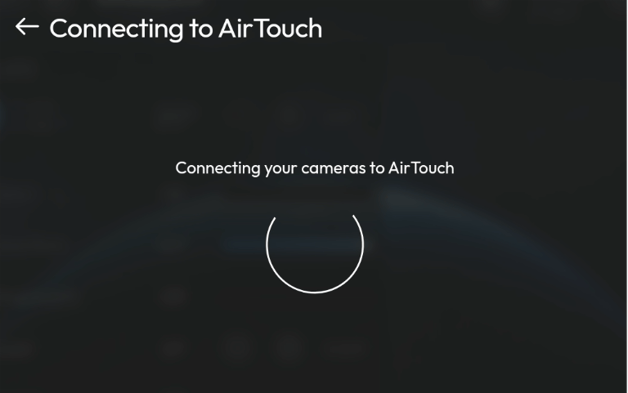
- Once internet network credential is correct, click ‘Next’ to start pairing with AirTouch server.
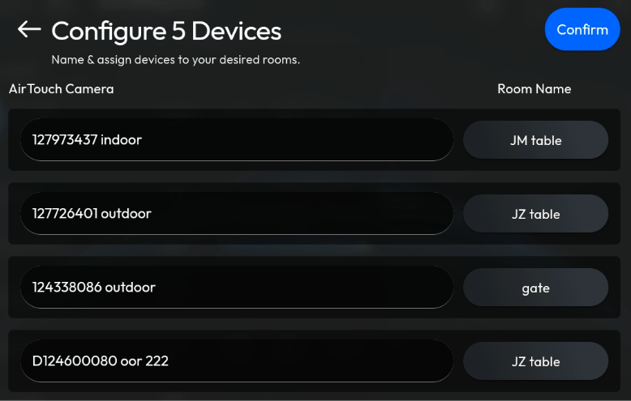
- Successfully onboarded, you can configure the device name and assign room to camera.
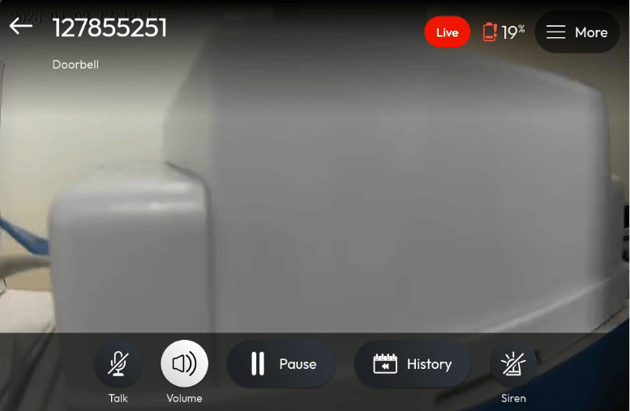
- You can select the Camera tile and start live view.