![airtouch-logo.png]](https://help.airtouch.net.au/hs-fs/hubfs/airtouch-logo.png?width=100&height=52&name=airtouch-logo.png)
To integrate a Remootio device with AirTouch Home, you must first configure it in the Remootio app, then connect it to AirTouch Home.
Pre-requisites
- Set up your device in the Remootio application first.
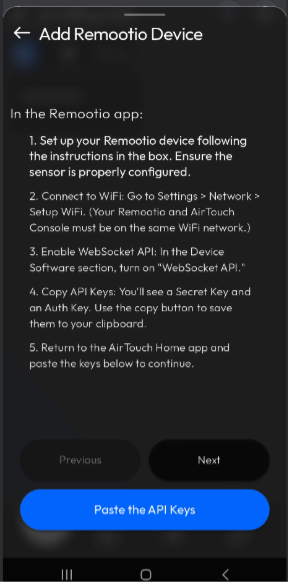
- Enable and copy the WebSocket API keys from the Remootio app.
Onboarding with AirTouch Home Mobile App
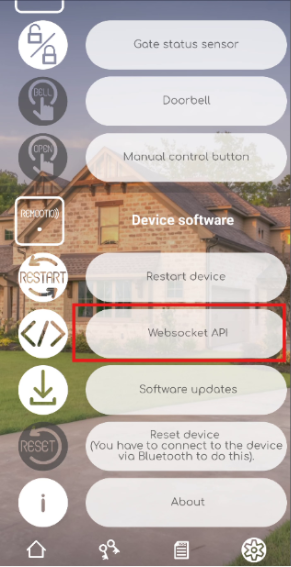
- Open the Remootio app → go to Settings.
- Tap WebSocket API.
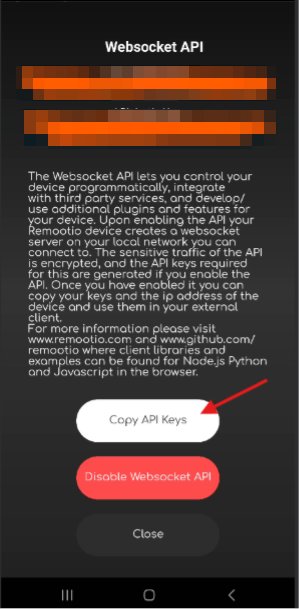
- Copy the API keys to your clipboard.
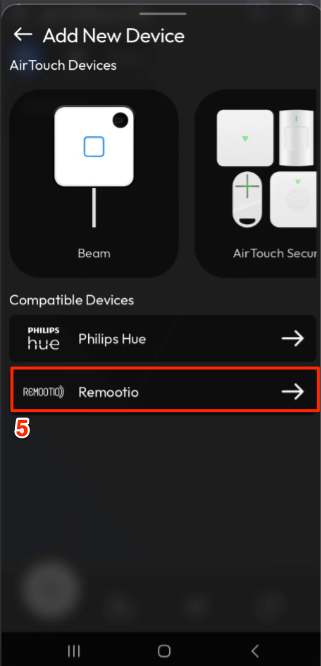
- Open the AirTouch Home mobile app.
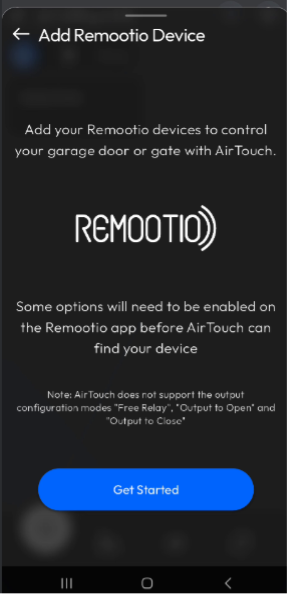
- Tap + Add New Device → select Remootio.
- Tap Get Started.
- Tap Paste the API Keys (previously copied from the Remootio app).
- After successful integration, configure your device:
- Rename it (optional).
- Assign it to a room (optional).
- Tap Confirm.
Once confirmed, the device tile will automatically appear on your Dashboard.
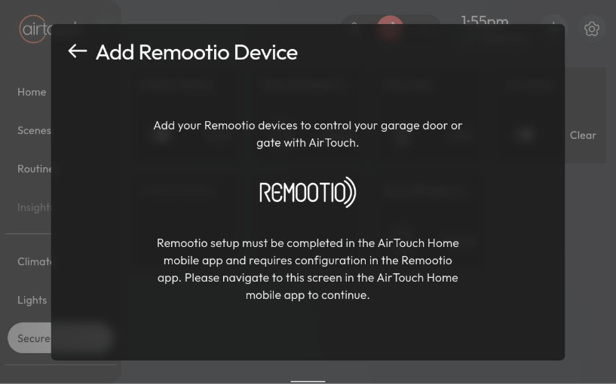
Note: AirTouch Home Console is not supported for Remootio onboarding because the copy-and-paste process of API keys is only available through the mobile app.